Tab 1 — Sources
Configure your data source and select files for processing.
Auto sync and sign-in
Where a section below says to select "Enable auto change sync": with the incremental registry on, every data source instead gets per-row Search+Vector / Graphs / Auto Sync columns on the Processing tab; tick Auto Sync there (see Tab 2 — Processing). The Alfresco, Nuxeo and CMIS forms can also ingest with your header sign-in instead of typed credentials (see the Sign-In guide).
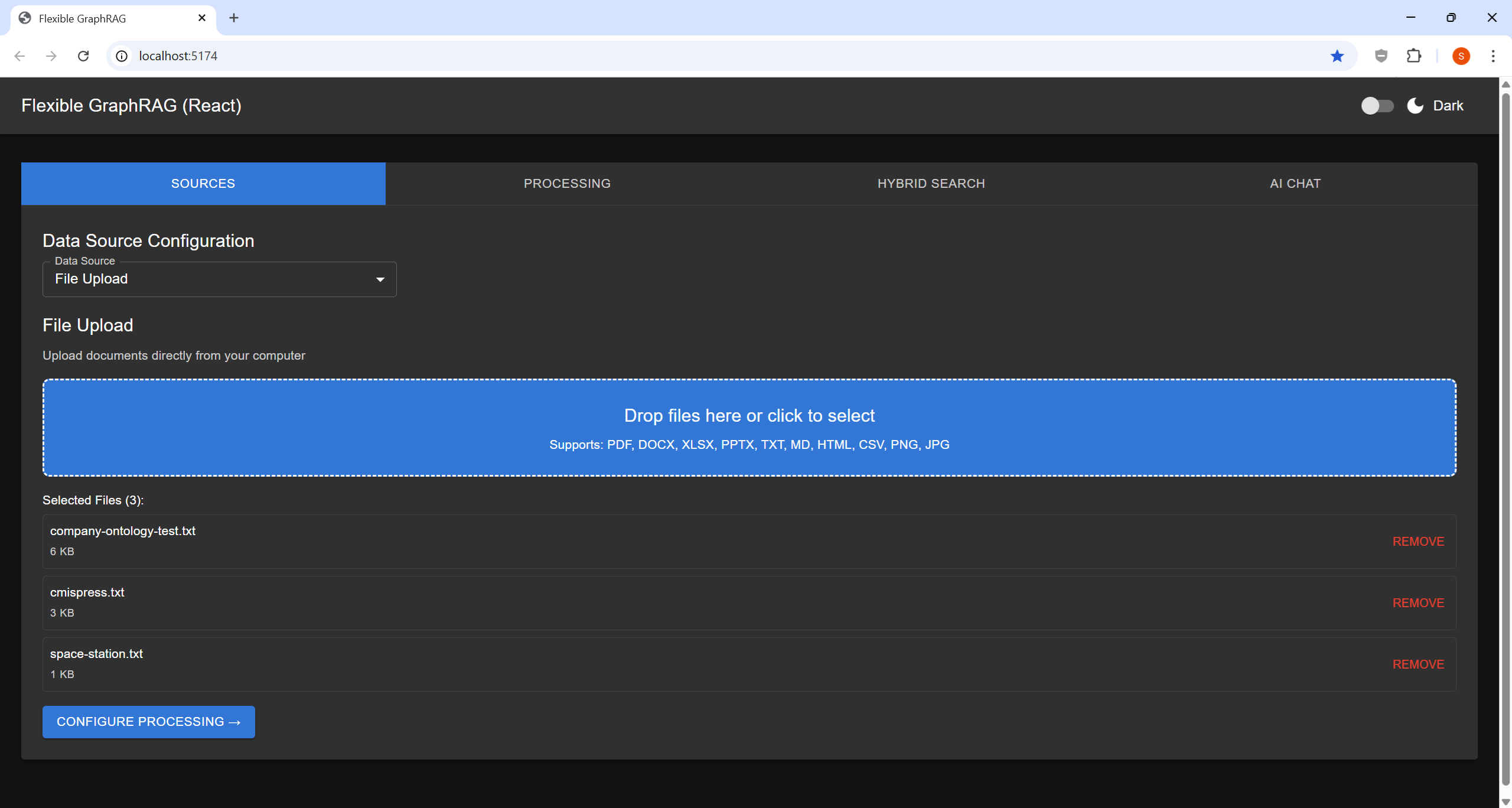
File Upload
Auto sync is not supported for the file upload UI.
- Select "File Upload" from the data source dropdown
- Drag & drop files onto the upload area, or click to open a file picker (multi-select supported)
- Supported formats: PDF, DOCX, XLSX, PPTX, TXT, MD, HTML, CSV, PNG, JPG, and more
- Click "CONFIGURE PROCESSING" to proceed
Note
If you drag & drop new files after selecting via dialog, only the dragged files will be used.
Local filesystem access
The UI uploads files to the backend server. To index files already on the server's local filesystem — with auto sync support — use the MCP server (ingest_documents with filesystem source) or the REST API.
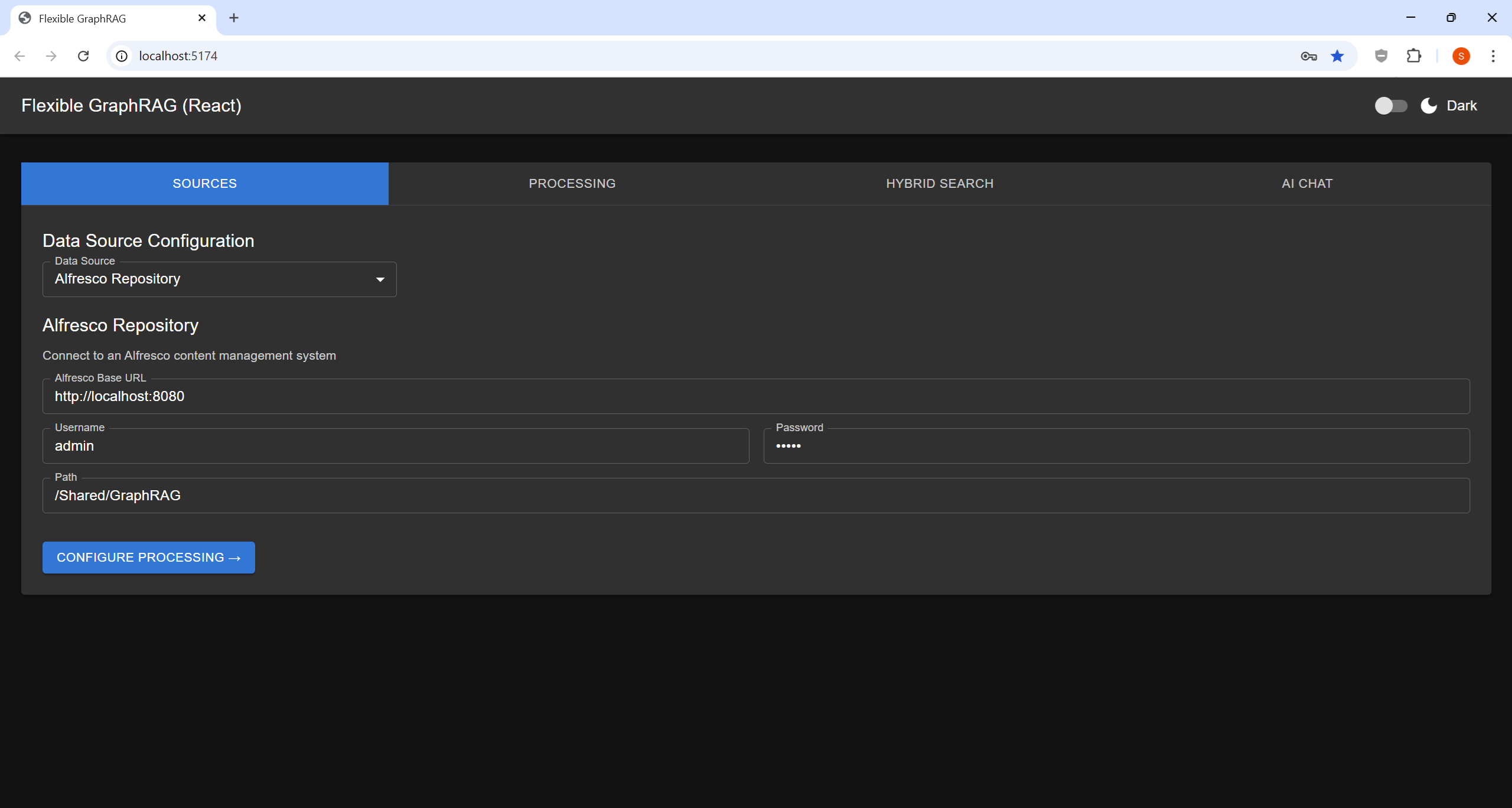
Alfresco Repository
Supports auto sync — select "Enable auto change sync" on the Processing tab before clicking "START PROCESSING".
- Alfresco Base URL — e.g.
http://localhost:8080/alfresco - Authentication — basic, ticket (enter username/password; the source self-fetches the ticket), or OAuth2 (Bearer via the
identity-servicesubsystem, e.g. Keycloak). See the Alfresco Integration Guide. - Username / Password (for basic / ticket)
- Path — e.g.
/Sites/example/documentLibrary - Deep — include subfolders at every depth (recursive) in the ingest and its auto sync
Nuxeo Repository
Supports auto sync — select "Enable auto change sync" on the Processing tab before clicking "START PROCESSING" (real-time via the Nuxeo audit stream over Kafka).
- Nuxeo URL — e.g.
http://localhost:8081/nuxeo - Authentication — basic, token (enter username/password; the source self-fetches the token), or OAuth2 (Bearer)
- Path — e.g.
/default-domain/workspaces/test - Deep — include subfolders at every depth (recursive) in the ingest and its auto sync

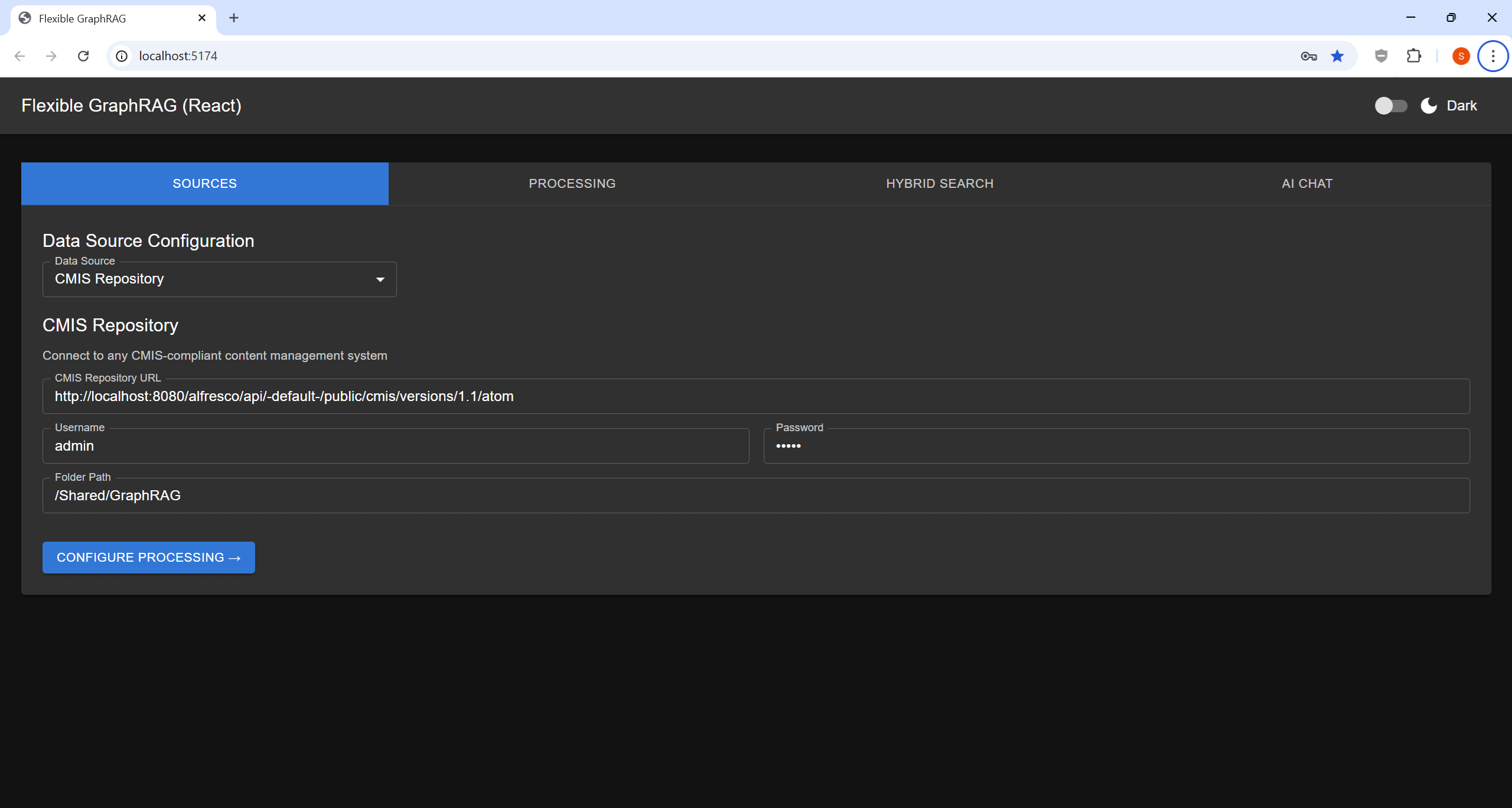
CMIS Repository
Auto sync is not supported for this source.
- CMIS Repository URL — e.g.
http://localhost:8080/alfresco/api/-default-/public/cmis/versions/1.1/atom - Username / Password
- Folder path — e.g.
/Sites/example/documentLibrary
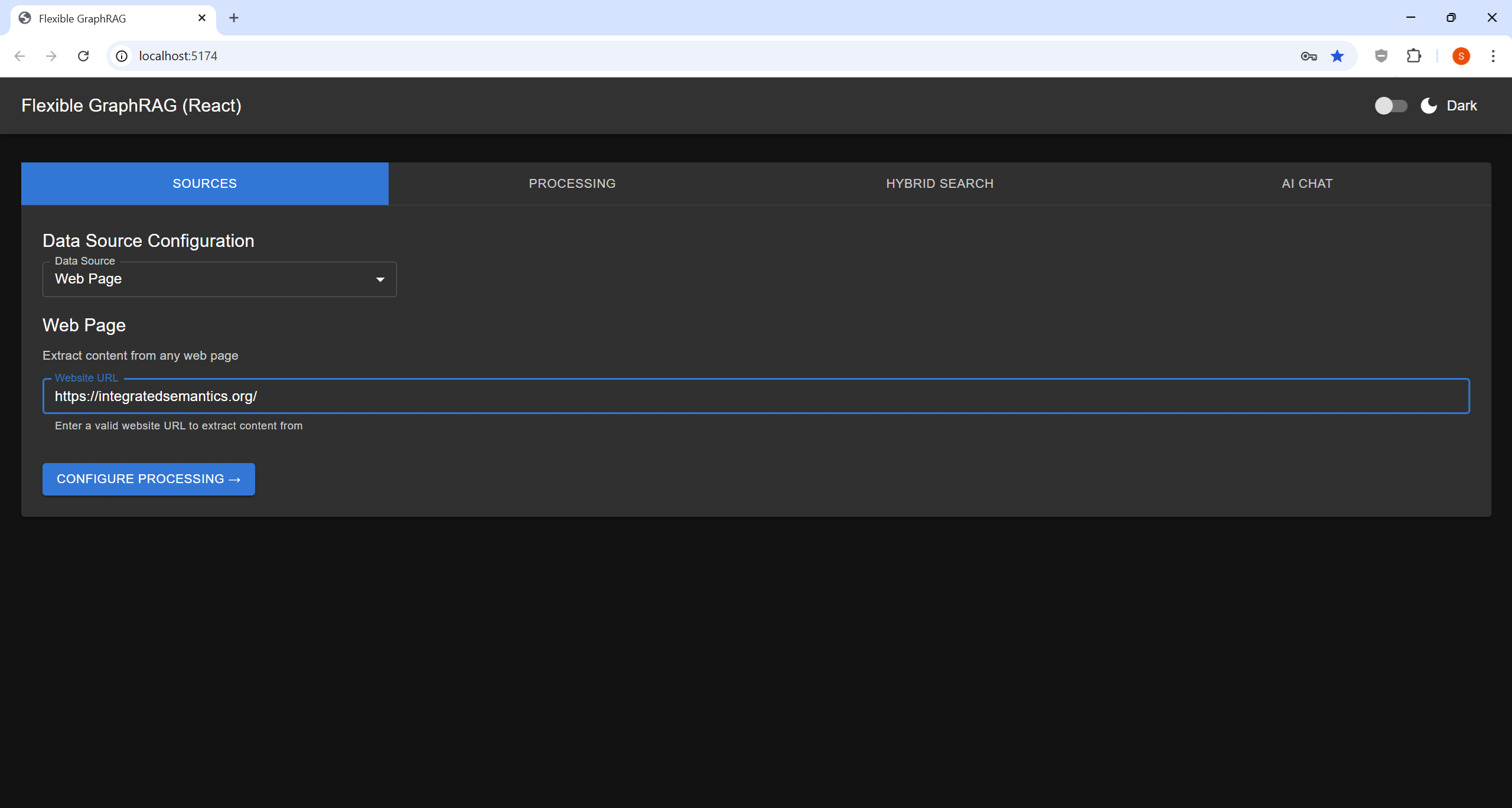
Web Pages
Auto sync is not supported for this source.
- URLs — list of web page URLs to fetch and index
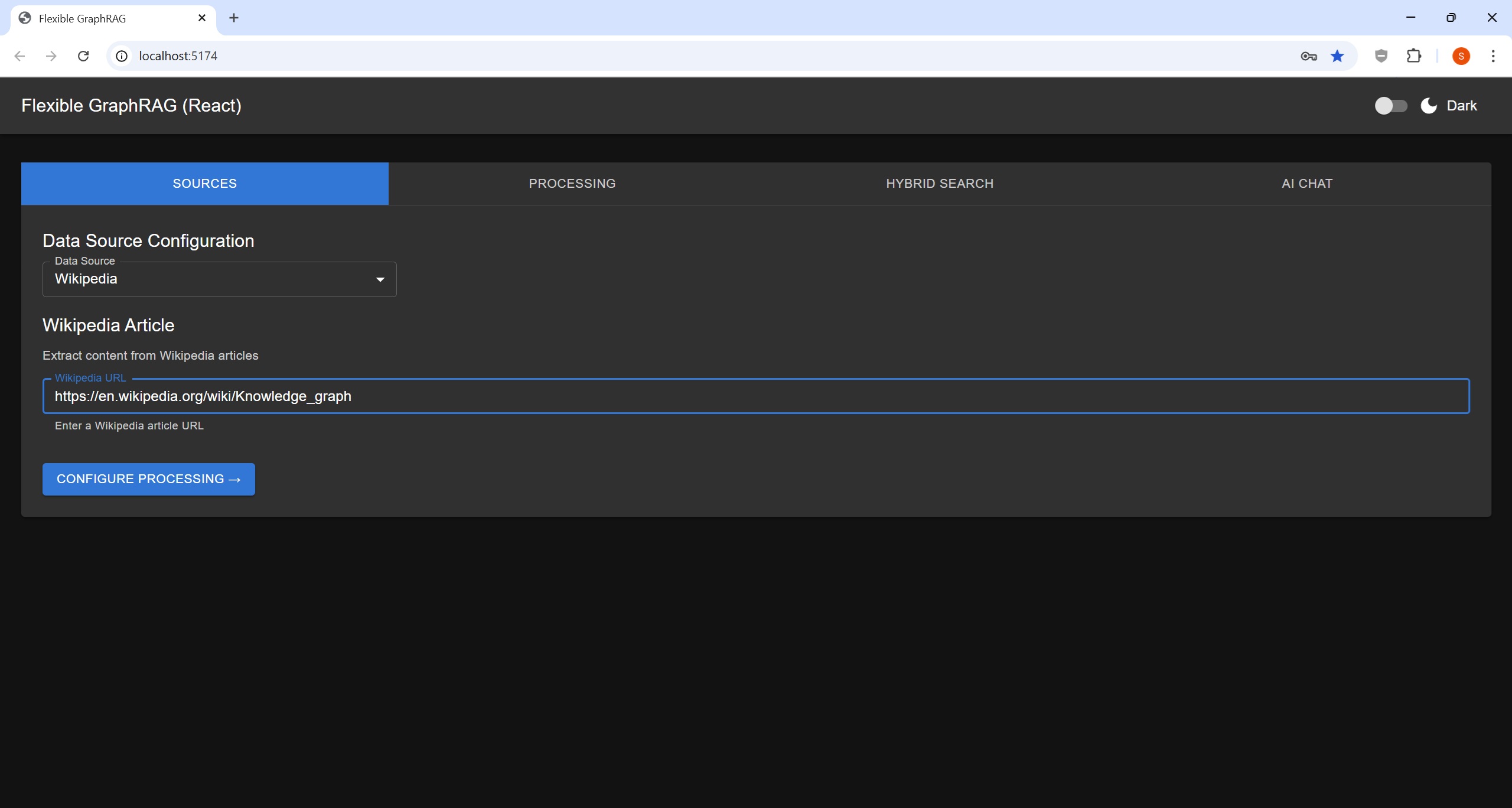
Wikipedia
Auto sync is not supported for this source.
- Titles — list of Wikipedia article titles
YouTube
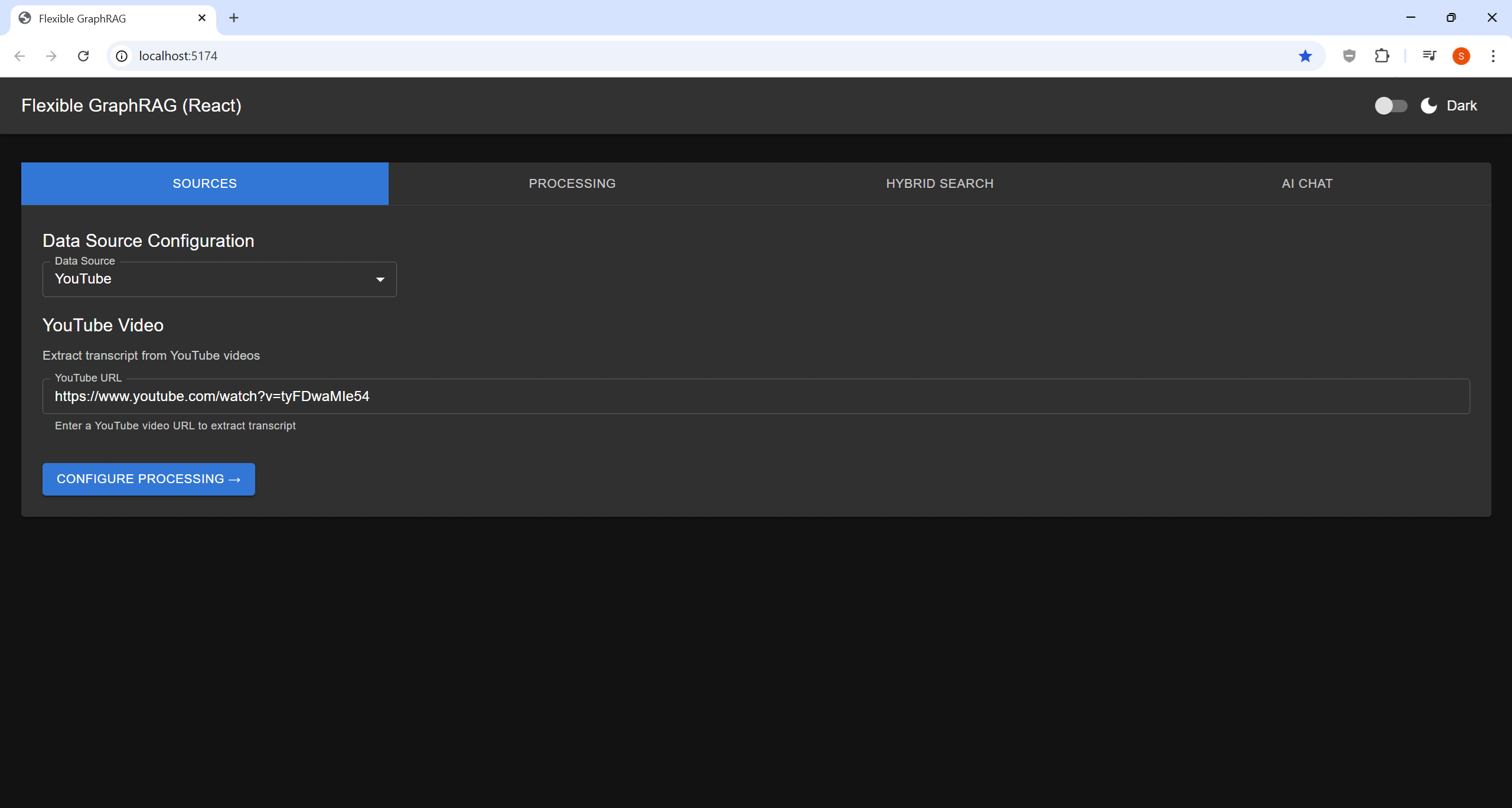
Auto sync is not supported for this source.
- URLs — list of YouTube video URLs (transcripts are indexed)
Google Drive
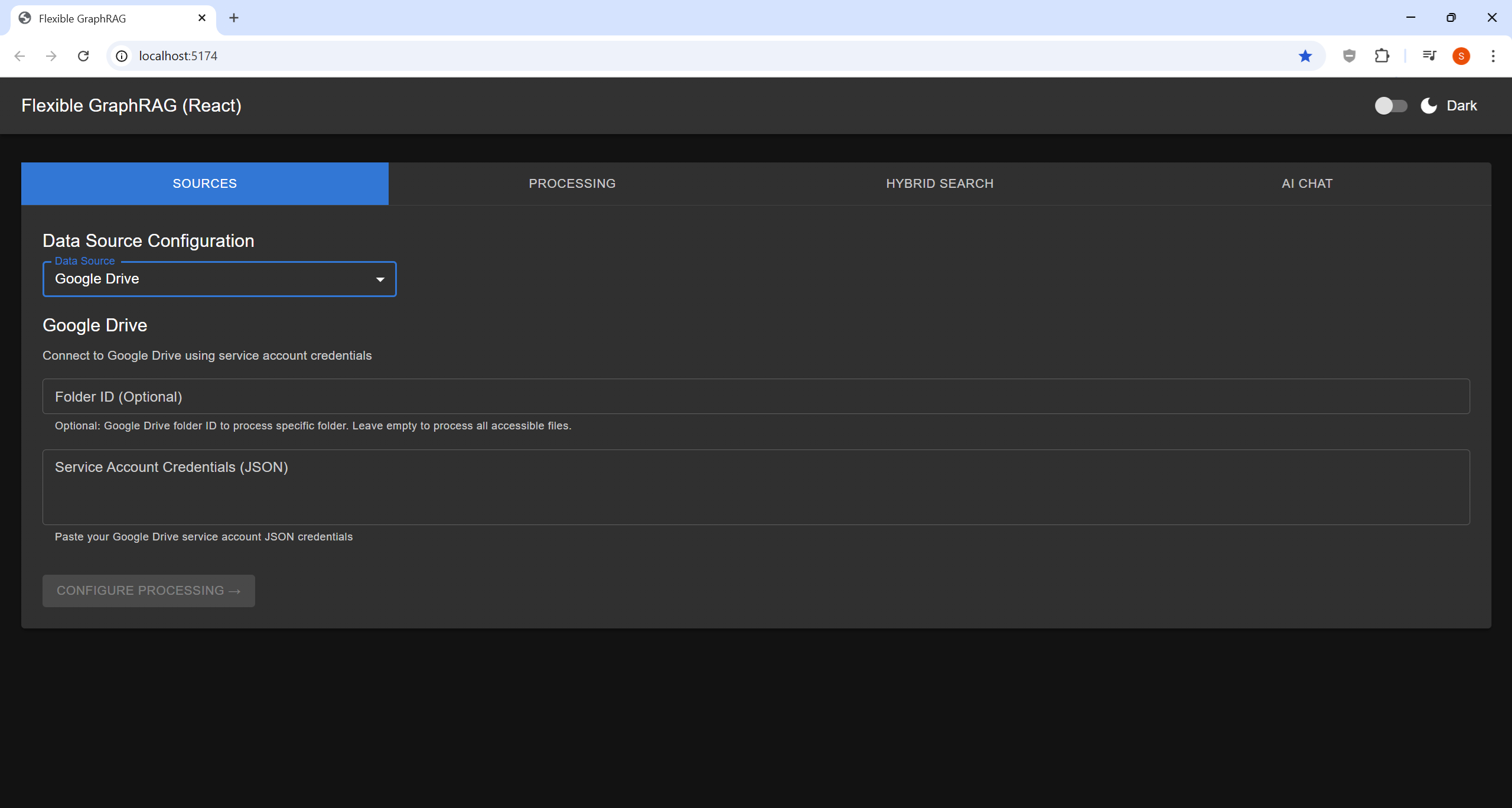
Supports auto sync — select "Enable auto change sync" on the Processing tab before clicking "START PROCESSING".
- Credentials Path — path to your service account JSON file
- Folder ID — Google Drive folder ID to index
Microsoft OneDrive
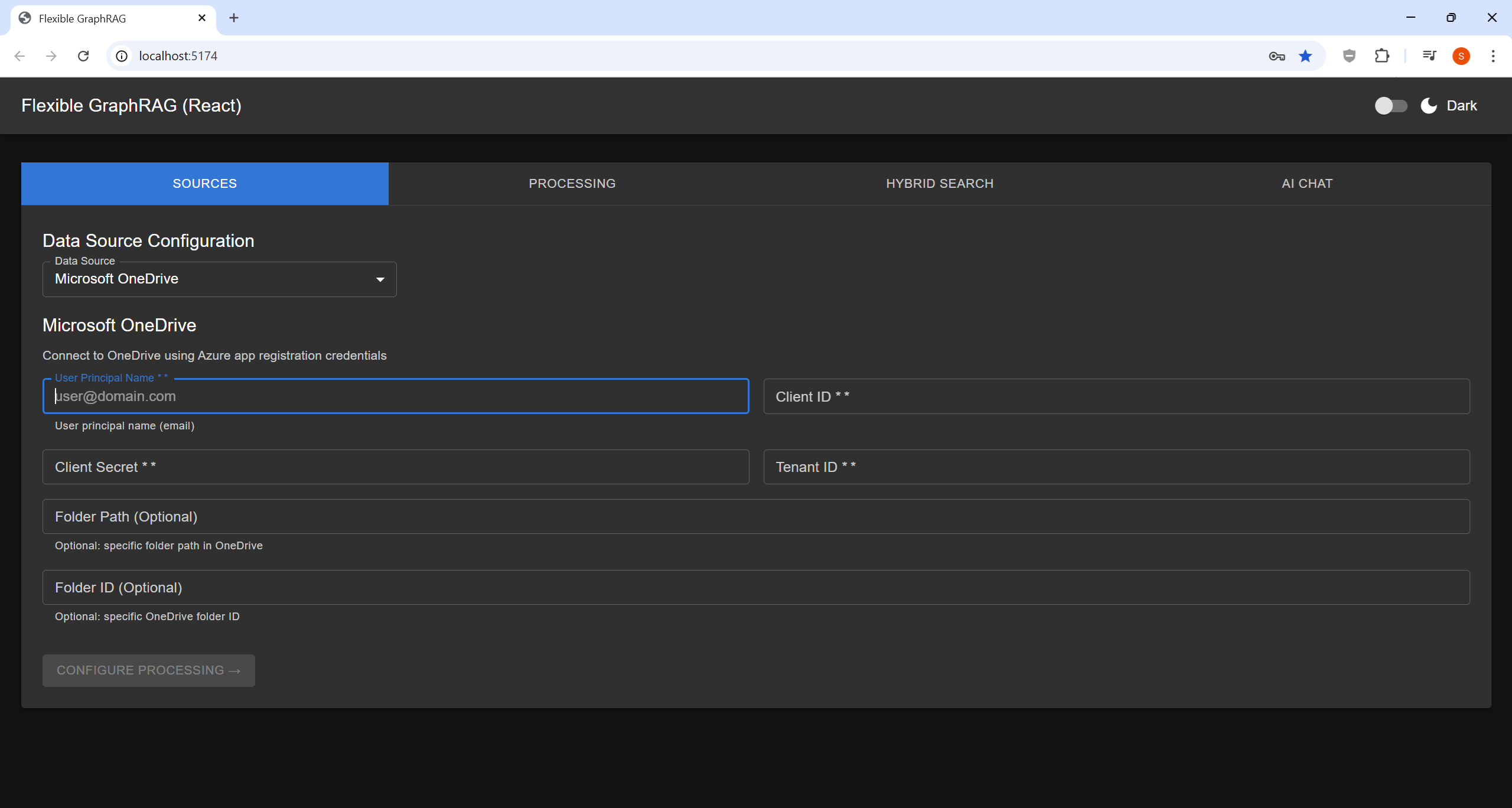
Supports auto sync — select "Enable auto change sync" on the Processing tab before clicking "START PROCESSING".
- Client ID / Client Secret / Tenant ID
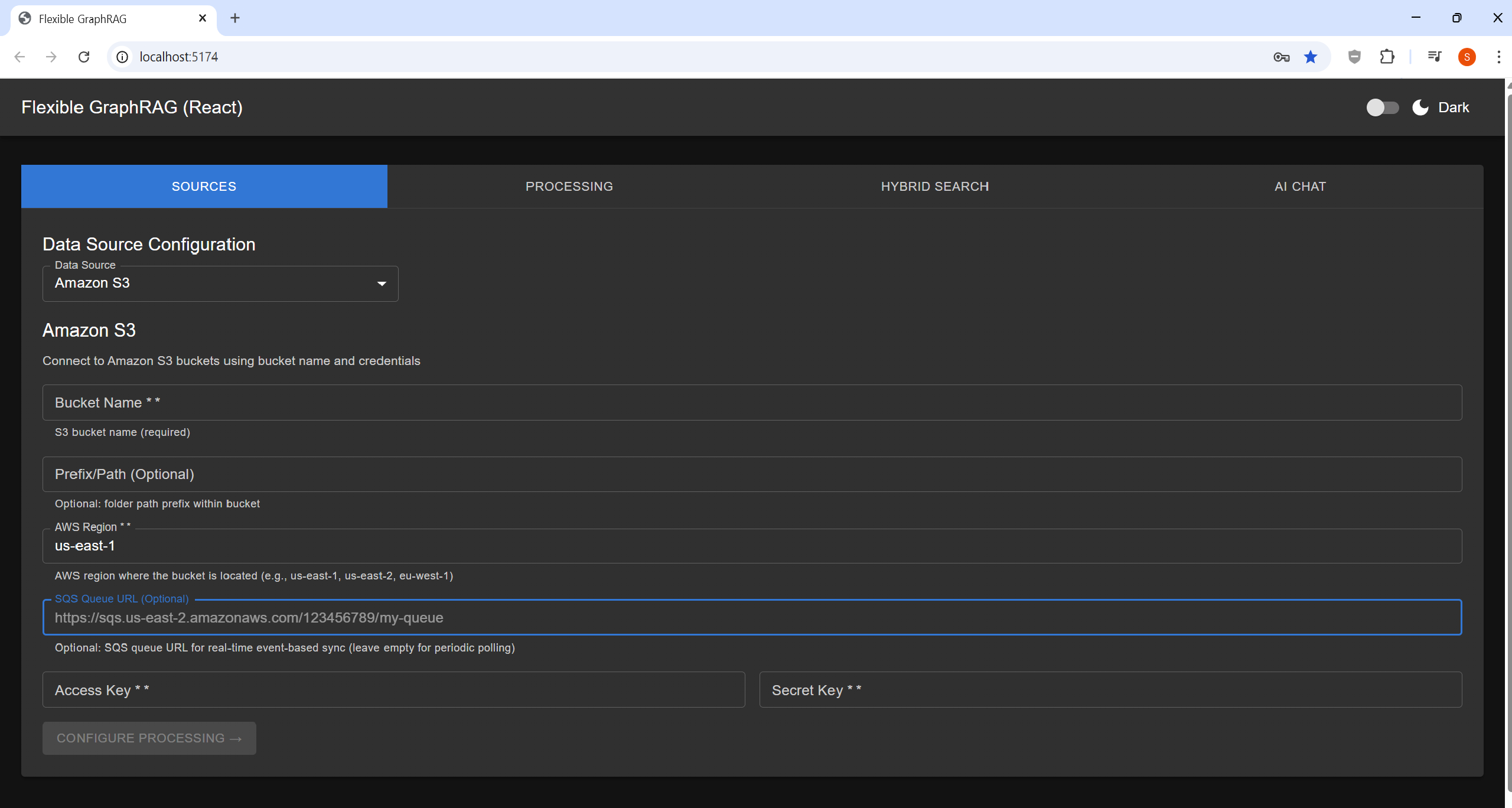
Amazon S3
Supports auto sync — select "Enable auto change sync" on the Processing tab before clicking "START PROCESSING". Also provide the SQS Queue URL in the source form.
- Bucket — S3 bucket name
- AWS Access Key ID / Secret Access Key / Region
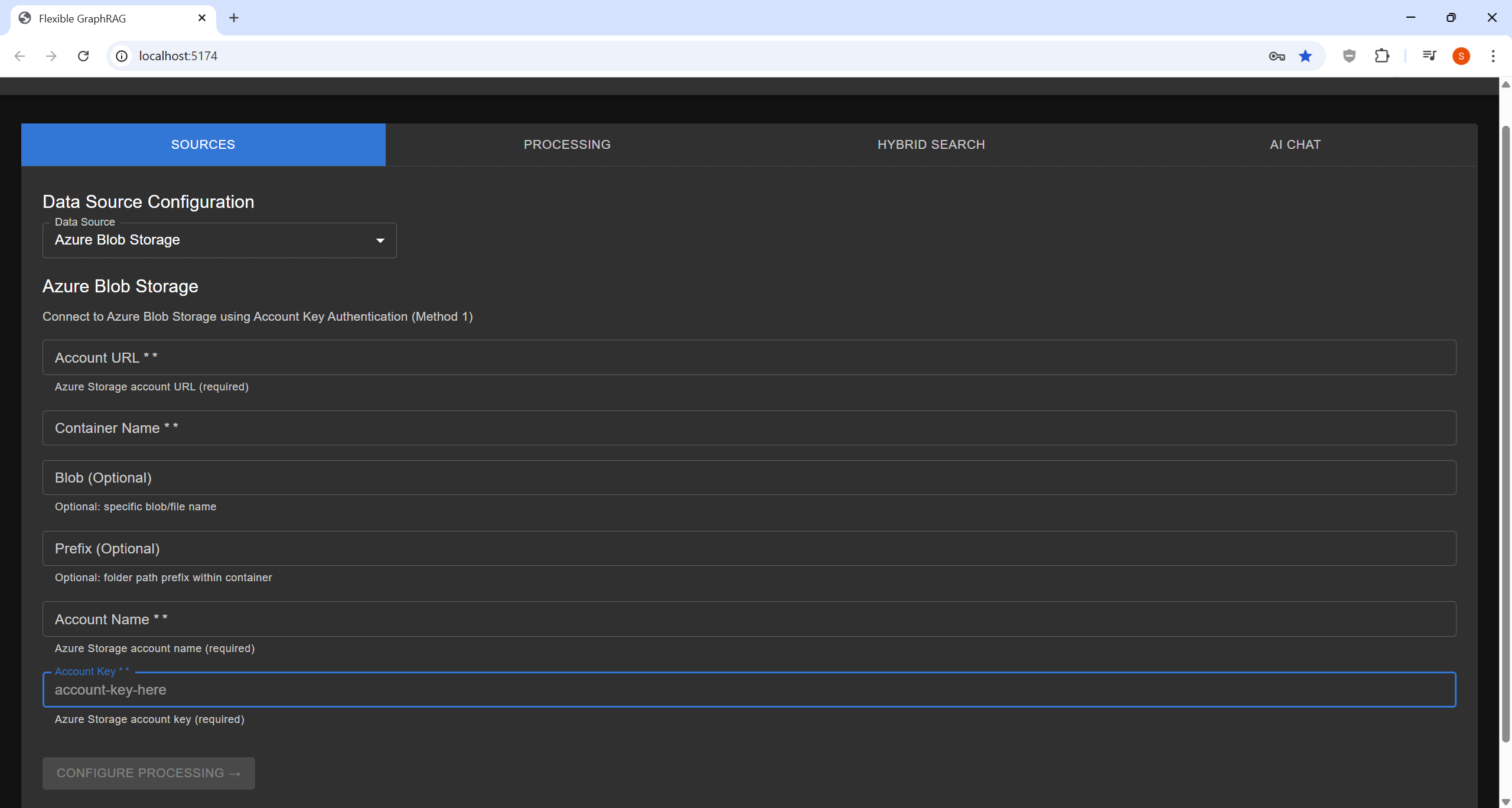
Azure Blob Storage
Supports auto sync — select "Enable auto change sync" on the Processing tab before clicking "START PROCESSING".
- Connection String
- Container Name
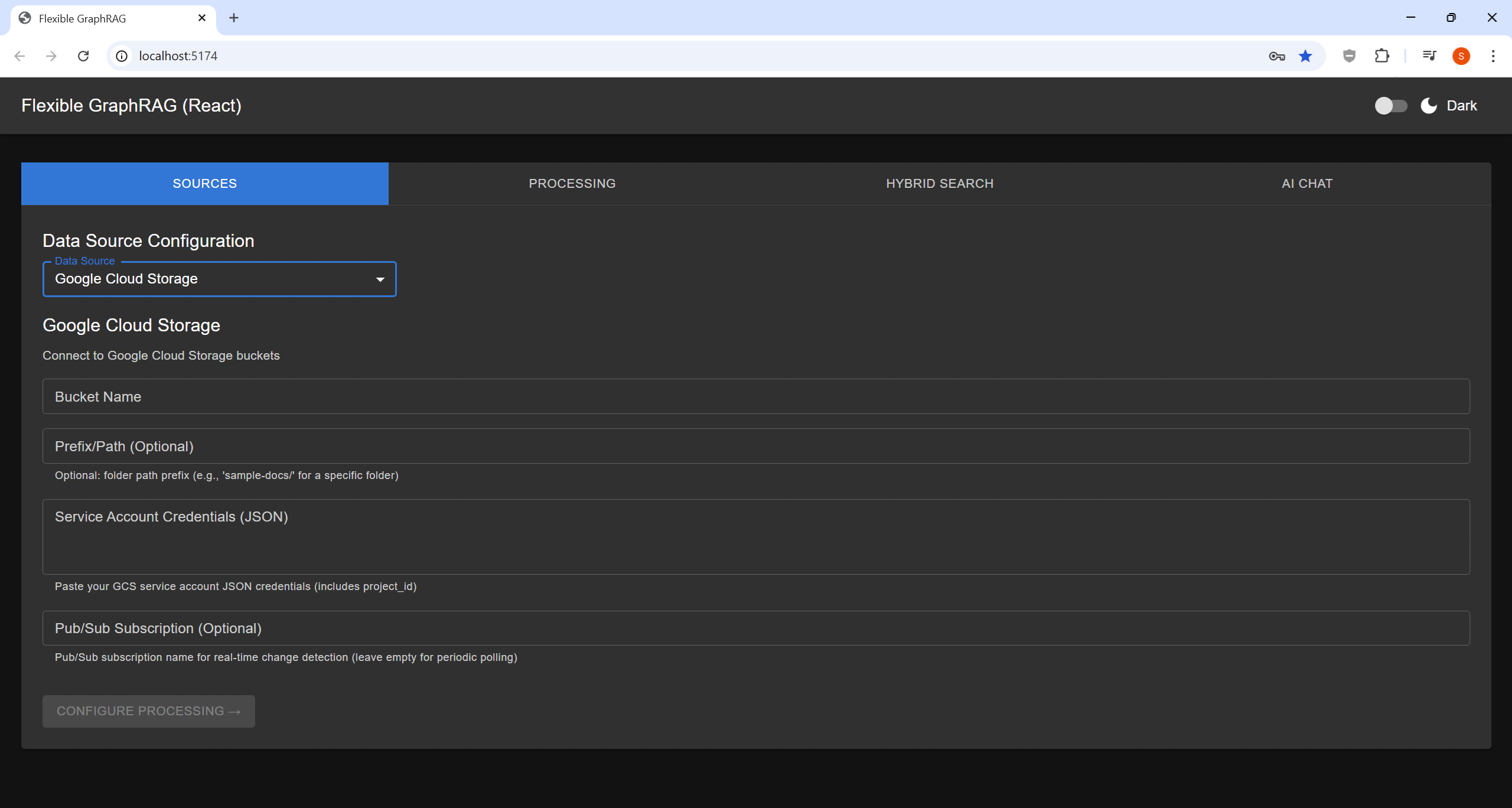
Google Cloud Storage
Supports auto sync — select "Enable auto change sync" on the Processing tab before clicking "START PROCESSING". Also provide the Pub/Sub Subscription Name in the source form.
- Bucket Name
- Credentials Path — path to your service account JSON file
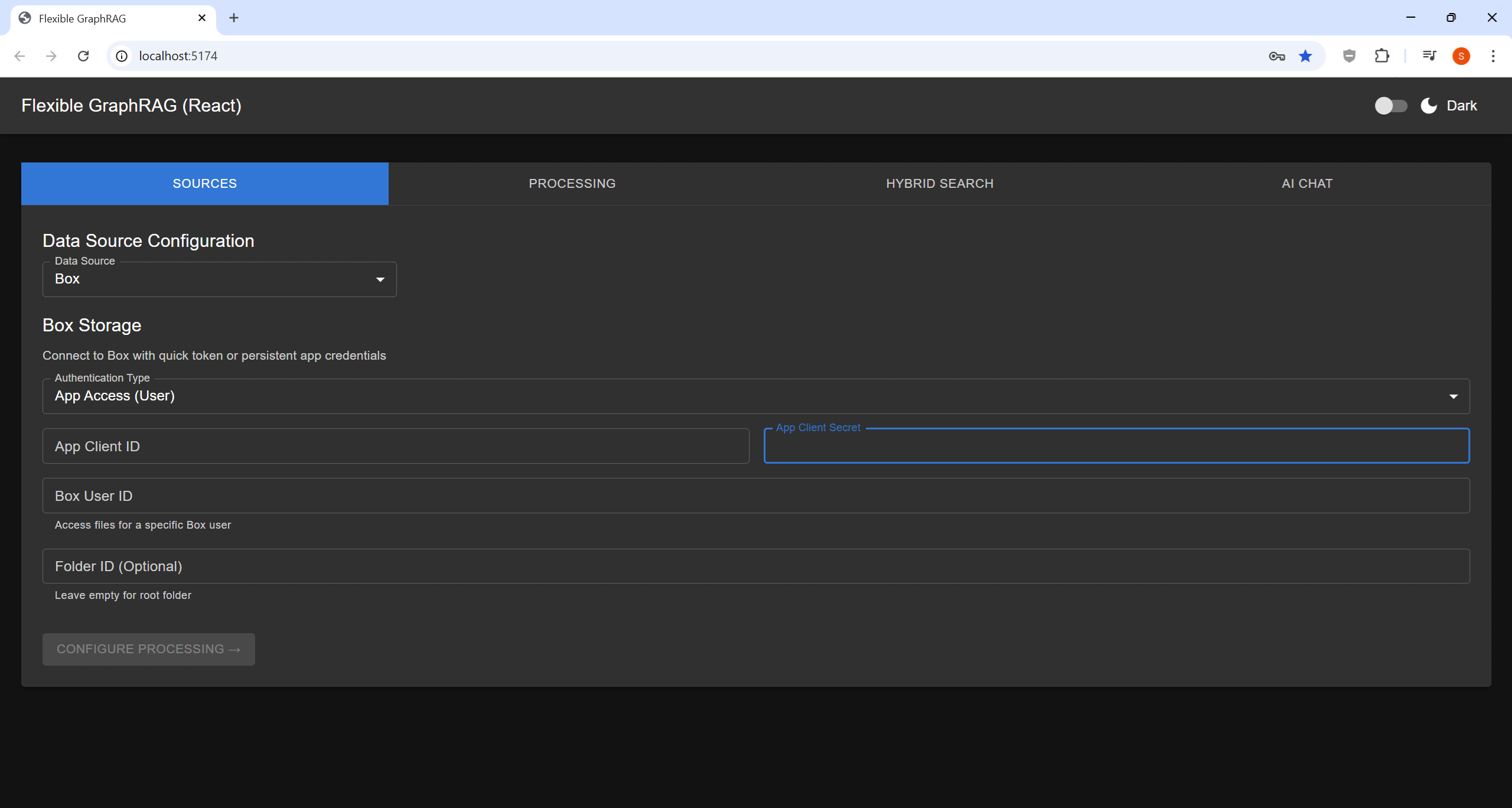
Box
Supports auto sync — select "Enable auto change sync" on the Processing tab before clicking "START PROCESSING".
- Client ID / Client Secret
- Folder ID
- Deep — include subfolders at every depth (recursive) in the ingest and its auto sync
SharePoint
Supports auto sync — select "Enable auto change sync" on the Processing tab before clicking "START PROCESSING".
- Client ID / Client Secret / Tenant ID
- Site URL
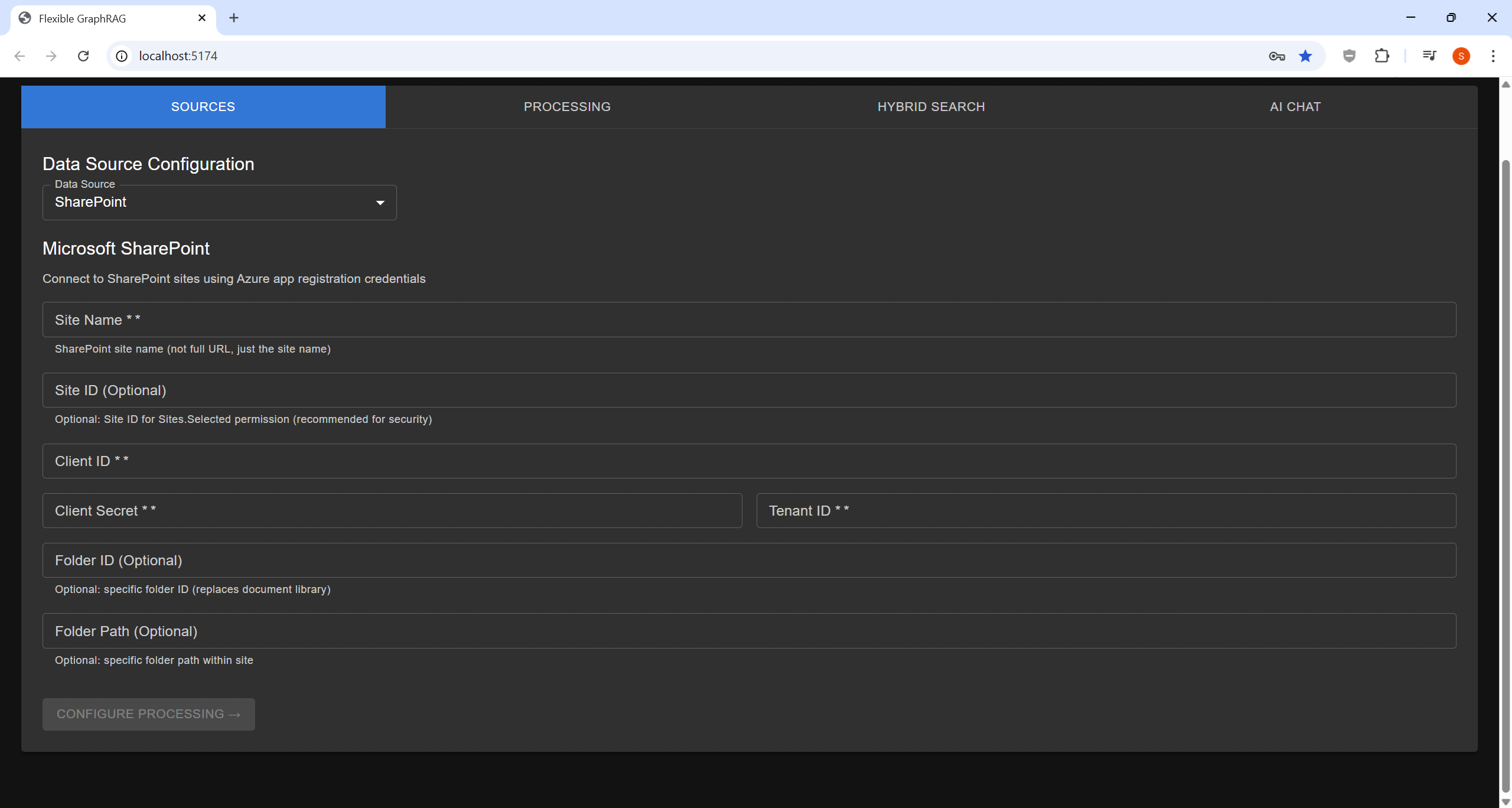
All 14 Data Sources
| Category | Sources |
|---|---|
| File & Upload | File Upload |
| Cloud Storage | Amazon S3, Google Cloud Storage, Azure Blob Storage, Google Drive, Microsoft OneDrive |
| Enterprise Repositories | Alfresco, Microsoft SharePoint, Box, CMIS |
| Web Sources | Web Pages, Wikipedia, YouTube |
See Data Sources for full configuration details for each source.
Auto-Sync (Incremental Updates)
Select "Enable auto change sync" on the Processing tab before clicking "START PROCESSING" to automatically keep your databases synchronized when files change.
- S3: also provide the SQS Queue URL
- GCS: also provide the Pub/Sub Subscription Name
See Incremental Auto-Sync for setup details.